Profile Page Office Hours Updates
How to Add Office Hours to Your Profile Page
- Open the Faculty Office Hours Form.
- Sign in using your Chabot or Las Positas College email address and password.
- If you use the same Zoom link for all your office hours, enter it only in the first section.
- If all your office hours are held in the same room, enter the room number only in the first section.
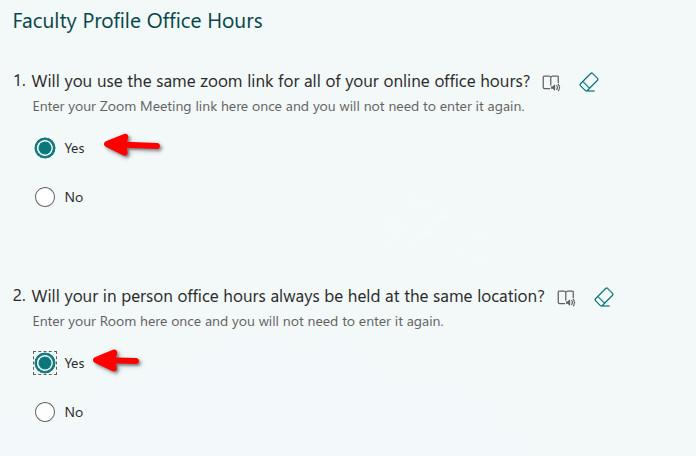
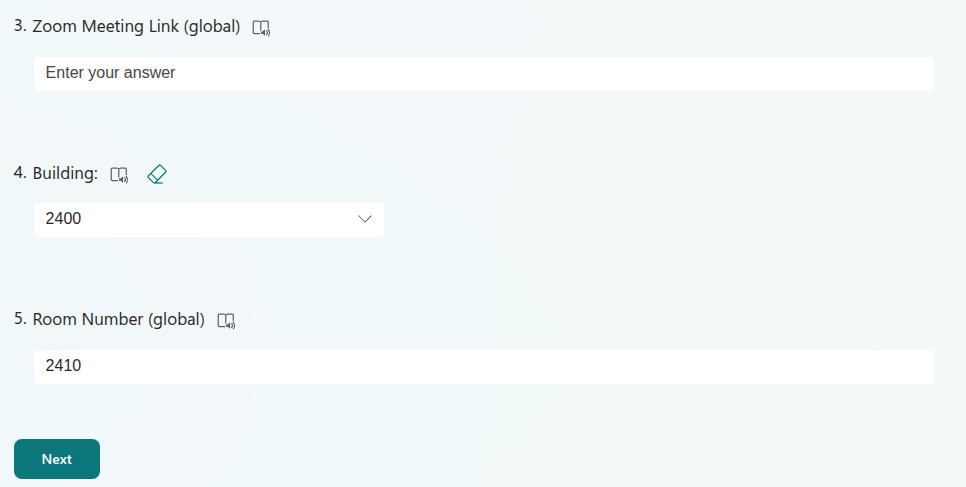
- Enter the Zoom link you use for all your office hours.
- If you use the same room for all your office hours, select the building and enter the room number.
- Select Next to enter your first set of office hours.
Office Hours Section
- First, select the day of the week.
- Then, enter the start time (for example, 11:30 AM).
- Enter the end time (for example, 1:00 PM).
- Select Zoom, In Person, or Both. If you select Both, the Zoom link and room number fields will appear.
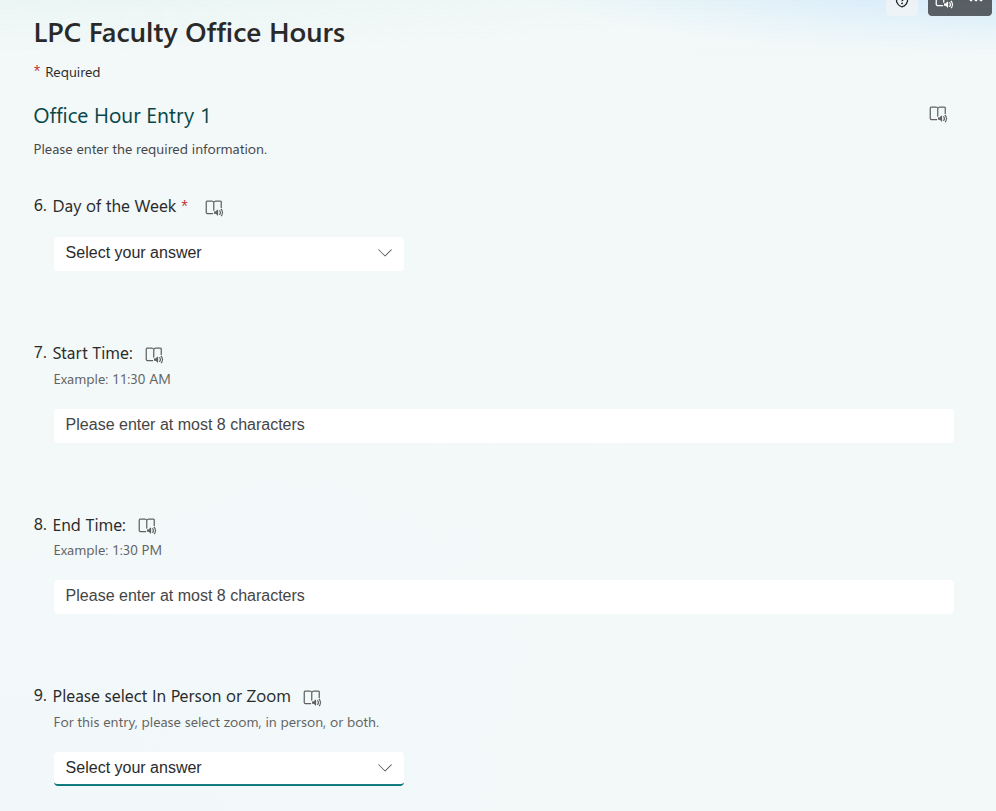
You do not need to enter Zoom or room information if you chose to use the global Zoom link and room number.
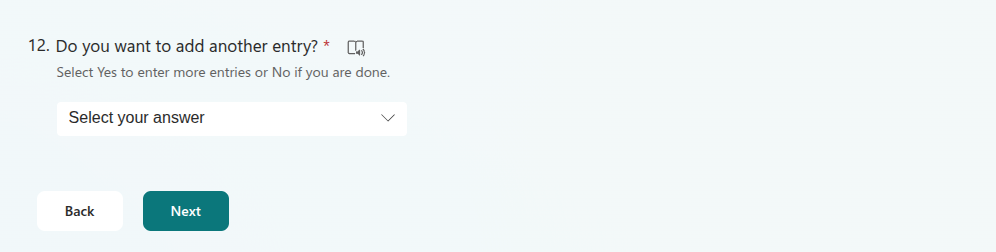
If you need to add more office hours, select Yes. If you are finished, select No, and then select Submit.